Modes Usage Guide
Input Mode
Type the current sentence into the input box. Once the whole sentence is entered correctly, the video automatically advances to the start of the next sentence.
Hands-on practice helps you internalize sentence structure and grammar while reinforcing vocabulary — noticeably more effective than just watching.

Selection Mode
If your goal is to learn English, set it up like this:
- Set the top subtitle to English
- Set the bottom translation to your native language
The reverse also works (learning through your native language). See 👉 Translation Settings for how to configure it.
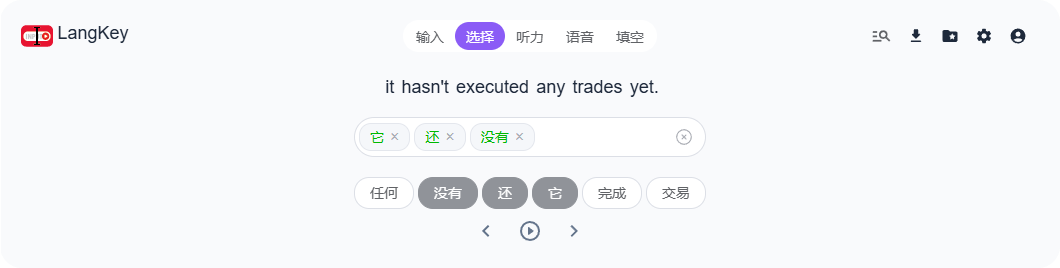
In this mode, the translated sentence is scrambled into shuffled words. Rearrange them into the correct sentence to test your sentence-building and comprehension. Once completed, the video advances to the start of the next sentence.
Listening Mode
In listening mode, the video first plays to the end of the current sentence, and you type what you heard into the input box. The sentence starts out blurred and hidden, and your input is checked in real time. Great for listening practice.

Voice Mode
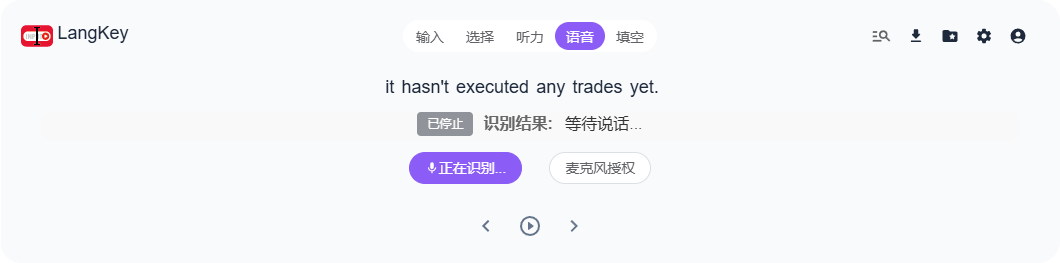
This mode requires microphone permission. Click to start recording, and when you finish, the result is recognized automatically.
Cloze Mode
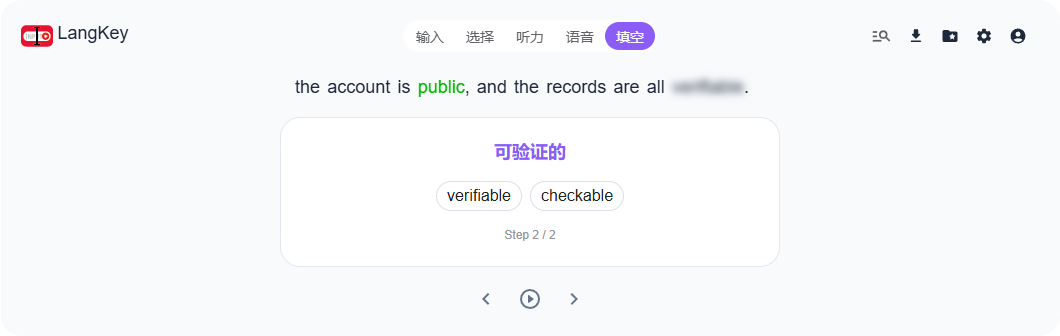
Cloze mode makes learning easier to get into, with difficulty levels you can match to your language proficiency. Based on the difficulty you choose, it picks out words likely to be unfamiliar or worth learning at your current level.
This mode requires configuring your own AI key before use. A free model is used by default (for Chinese providers); you can also choose paid models from different vendors as needed. See the AI Model Application Tutorial.