Translation Settings
LangKey shows two kinds of translation while you watch: machine translation (instant word-by-word results when you click a subtitle word) and AI translation (full-sentence, context-aware results in AI-powered modes). Both can be switched to your preferred target language independently, so you can for example read word glosses in your native language while keeping AI sentence translations in English for extra immersion.
This page covers where to change the translation language in each mode. If you are looking for how to choose or configure a translation engine (Google, DeepL, Ollama, or your own API key), see AI Engine & Translation Engine.
Machine Translation: Switching the Target Language
Click any word in the subtitle, then pick the target language from the options on the right side of the pop-up result. The choice is remembered across videos and practice sessions.
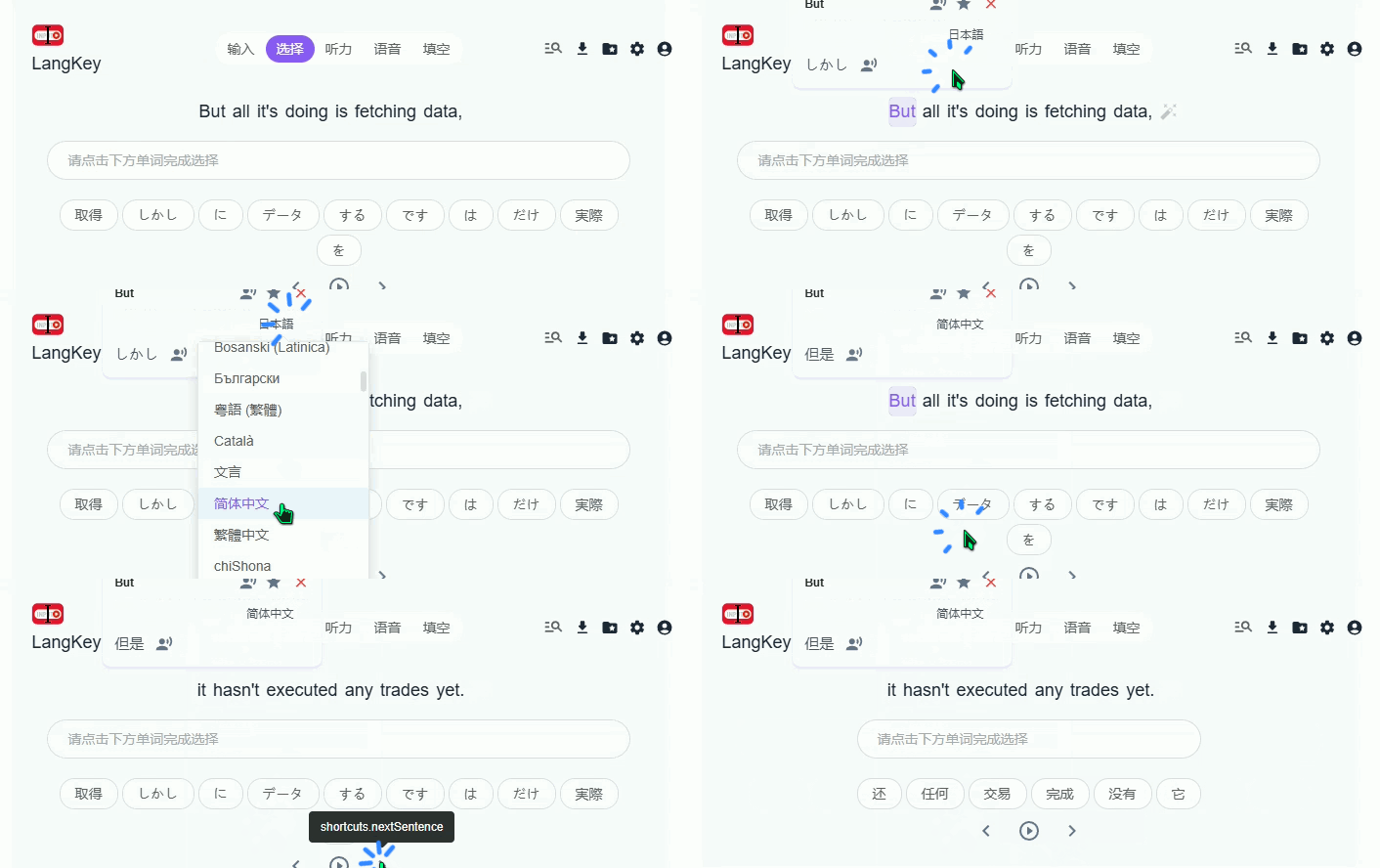
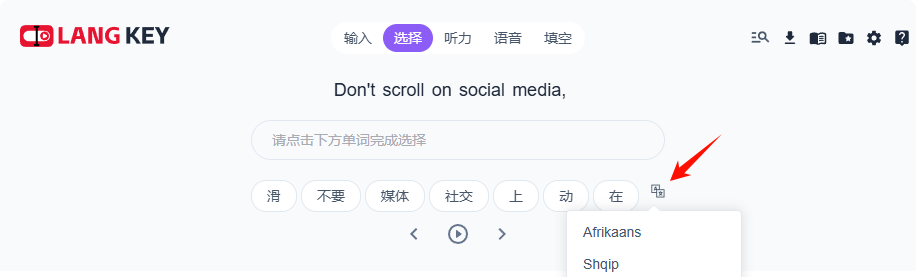
Selection Mode: Switching the Translation Language
Hover over the translation result and a language switch button will appear. This applies to text you select with the mouse on any web page or in the subtitle panel.
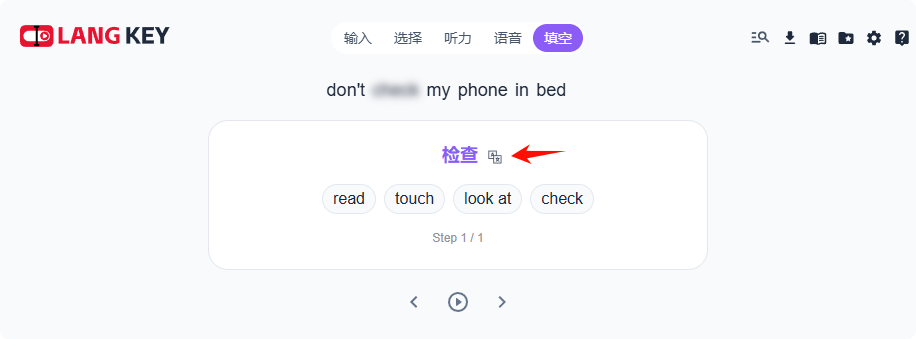
AI Cloze Mode: Switching the Translation Language
Hover over the AI translation result and a language switch button will appear. Use this when the automatically generated cloze exercise shows its hint translation in the wrong language.
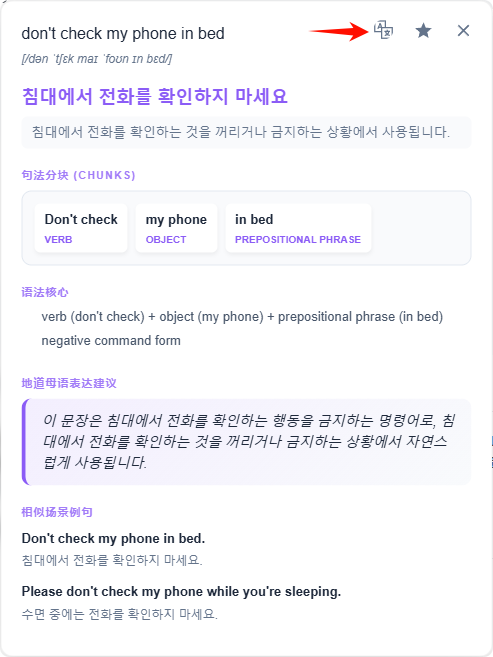
AI Translation Result: Switching the Display Language
A language switch button appears to the right of the AI translation result. Click it to change the language the translation is shown in.
Tips
- Word-level and sentence-level settings are separate. Changing the machine translation language does not affect AI translation, and vice versa.
- Your choices persist. Once switched, the target language is kept for future videos, articles, and practice modes until you change it again.
- Pair with bilingual subtitles. If you want two subtitle tracks on screen at the same time, configure Subtitle Settings instead of switching the translation language back and forth.
- Wrong words go to your vocabulary automatically. Words you look up can be saved and reviewed later — see Word Collection.
Related
- AI Engine & Translation Engine — choose between Google, DeepL, Ollama, or custom API keys
- Subtitle Settings — dual subtitles, font size, and display options
- Different Modes — what each practice mode does